

Want to limit when your children can use the internet on their devices? If you have an ASUS router, you can set up time schedules that automatically block internet access during bedtime, homework hours, or any other time you choose.
This guide will walk you through how to do it — no technical knowledge required. If your current router doesn’t support this feature, don’t worry — we’ll also explain why it might be worth upgrading.
🧩 What You'll Need
- An ASUS router with the latest firmware installed
- Access to the router admin panel (you'll need the login info)
- The device(s) your child uses must already have connected to the home Wi-Fi at least once
🛠 Step-by-Step: Creating a Time Schedule on Your ASUS Router
- Log into your ASUS router settings.
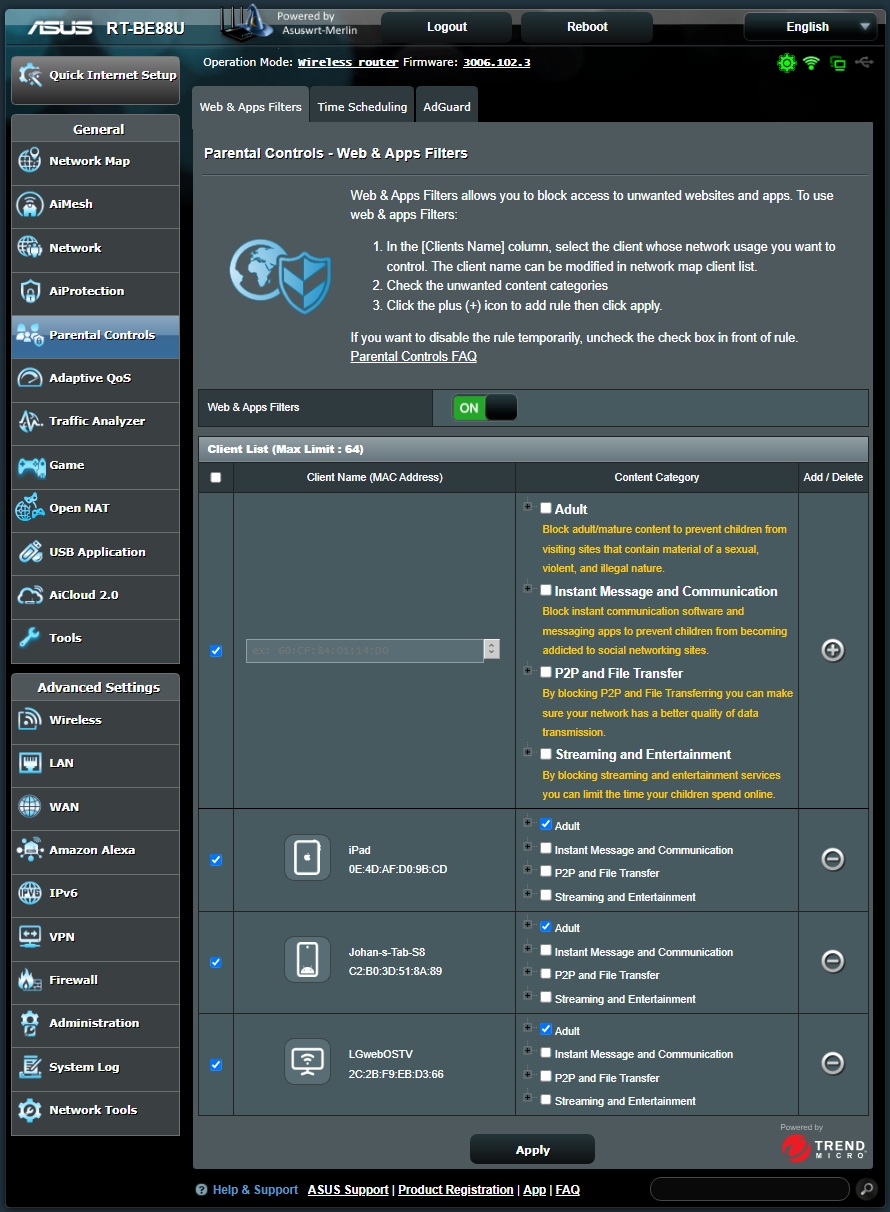
Open a browser and go tohttp://router.asus.comor your router’s IP address (usually192.168.1.1). - Enter your username and password.
If you’ve never changed it, the default is oftenadmin / admin, but check your router label or manual.
⚠️ Tip: If you're still using the default password, change it after setting up time scheduling! - Go to the “AiProtection” or “Parental Controls” section.
Depending on your model, this may be under the left-hand menu. Look for “Parental Controls,” then click on “Time Scheduling.” - Find the device you want to manage.
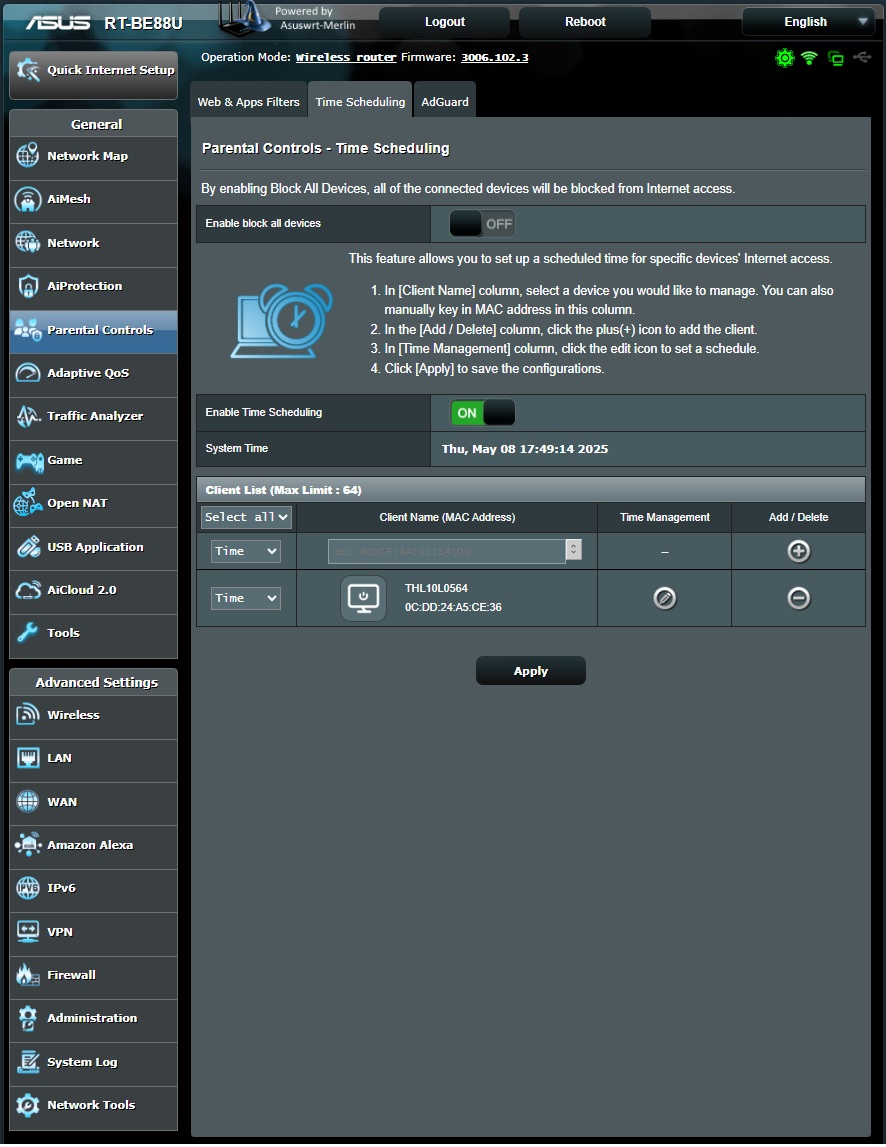
You’ll see a list of connected devices by name or MAC address. Choose your child’s tablet, phone, or computer. Create the schedule.
You can block internet access during specific days and times. For example:- Block internet after 8pm on school nights
- Limit access during homework time (4–6pm)
- Allow full access only on weekends
Most ASUS routers use a visual weekly grid — just click to block or allow time slots.
- Apply and save changes.
Once the schedule is set, click “Apply” or “Save.” The restrictions will now be active on the selected device.
For more information on how to setup Family(Parental Controls) via the ASUS Router App, click HERE.
📱 Why This Matters
Children often struggle with self-regulation, especially around screens. Using your router to automate access helps avoid arguments and creates healthy digital habits without constant supervision.
🛍 Don't Have This Feature?
If your current router doesn’t support time scheduling, you’re not alone — most broadband providers supply basic routers with limited parental controls. Consider upgrading to a consumer-friendly router like those made by ASUS, TP-Link, or Netgear.
Look for features like:
- Time-based scheduling
- Device grouping
- Content filtering
- App or mobile access for adjustments on the go
💬 Join the Conversation
Have you set time limits on your network? What schedule works for your family? Share your setup or ask questions — we’re here to help!
— The TinyFirewalls Team
Please log in or sign up to comment.